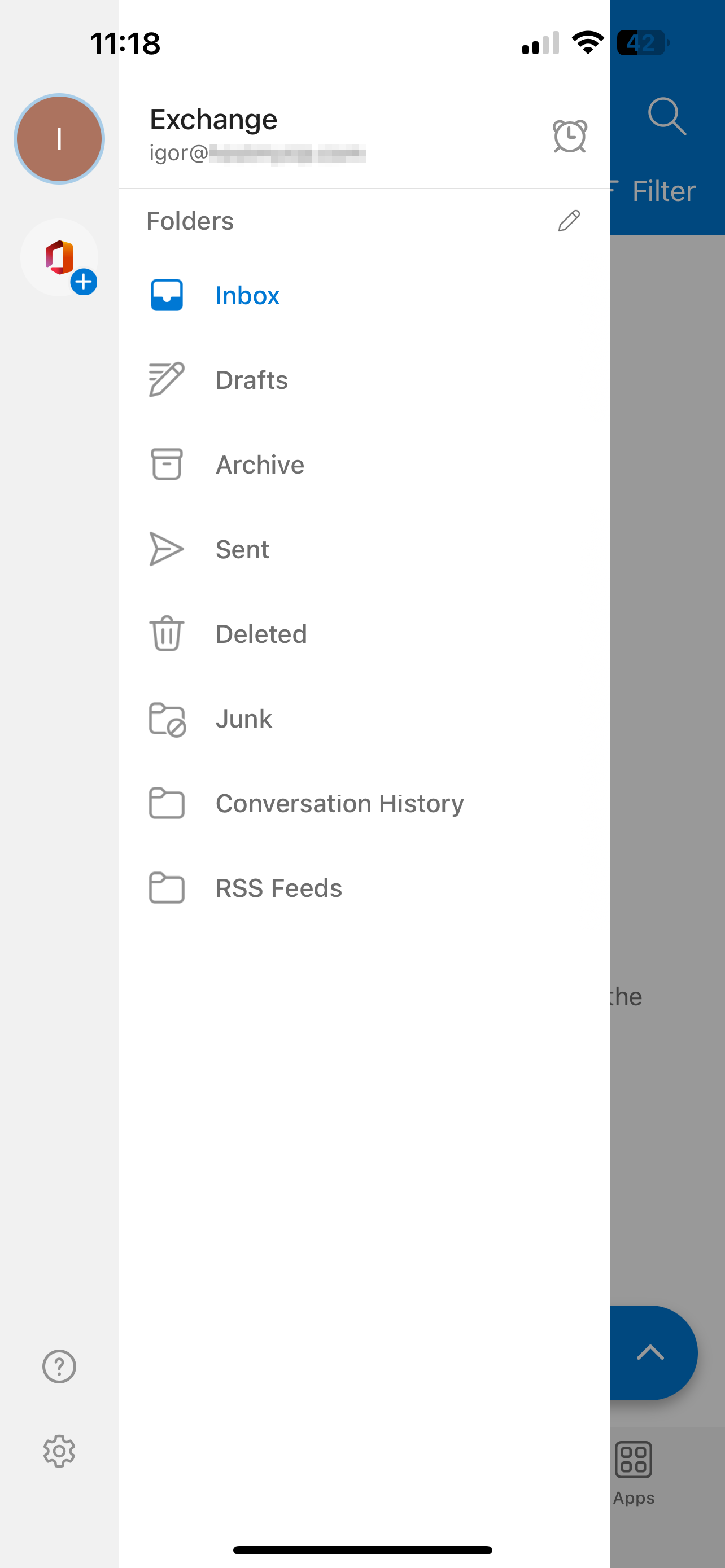
Android Outlook Exchange connectivity:
- Open “Play Store”, search for Outlook and install it.
- Start Outlook app:
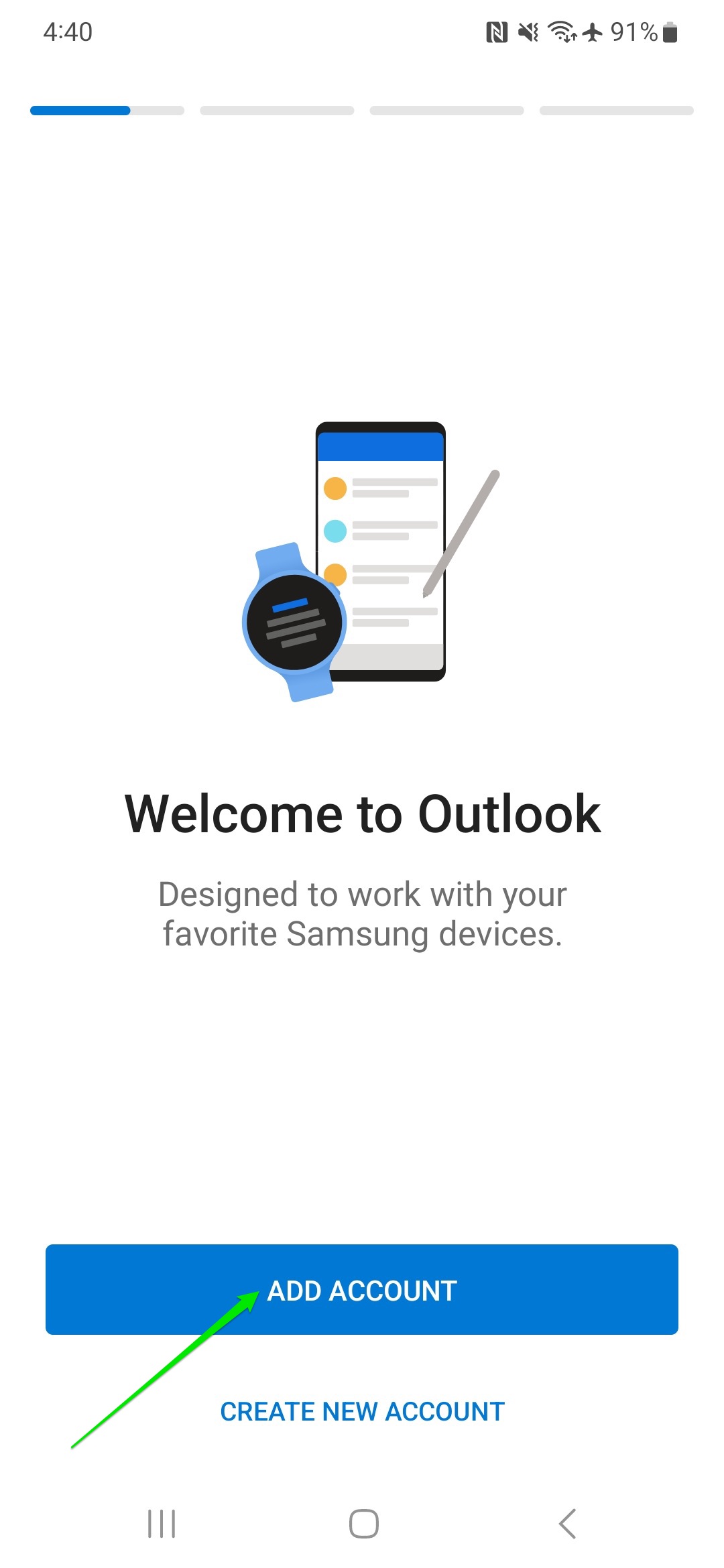
- Click “ADD ACCOUNT“:
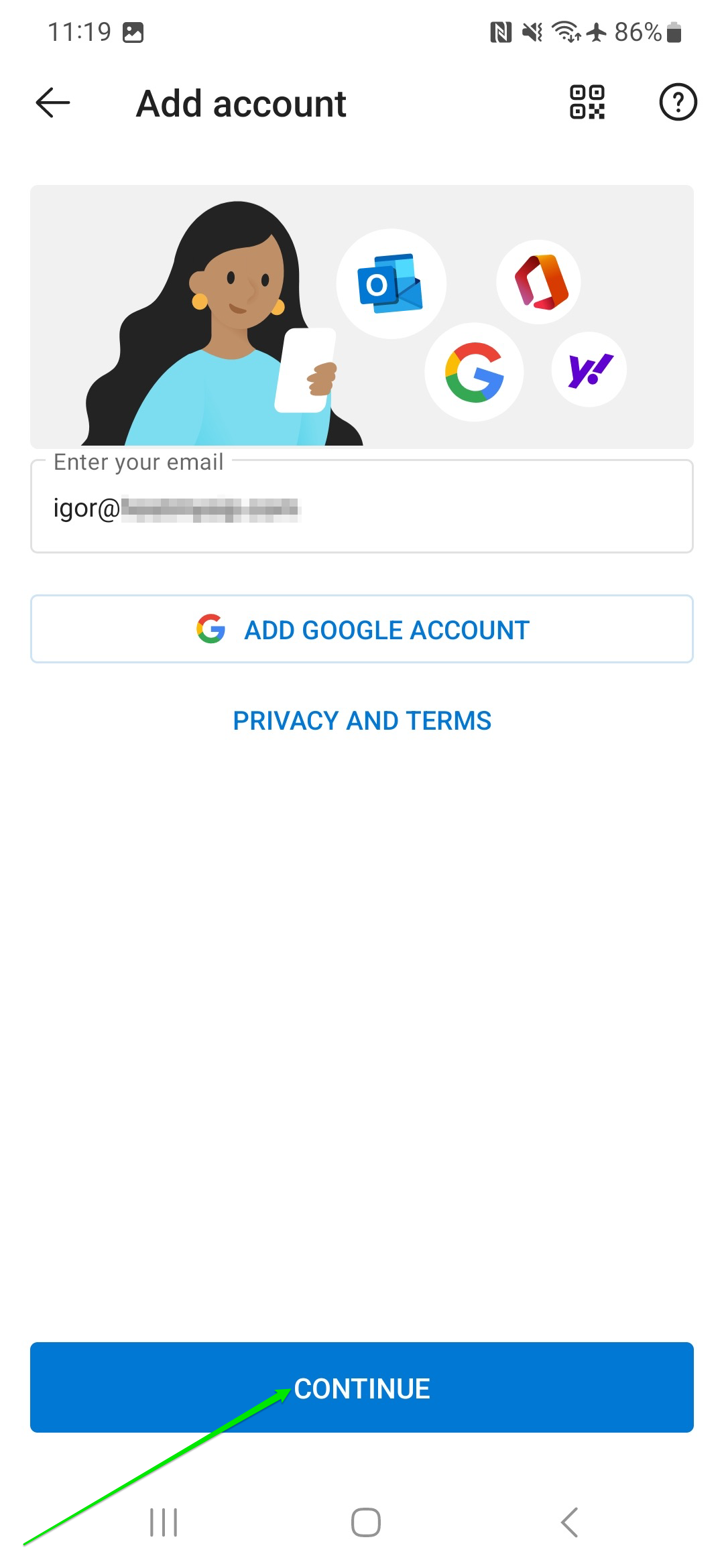
- Type your email (you@hebusa.com or you@hostmysip.com) and click “Connect:
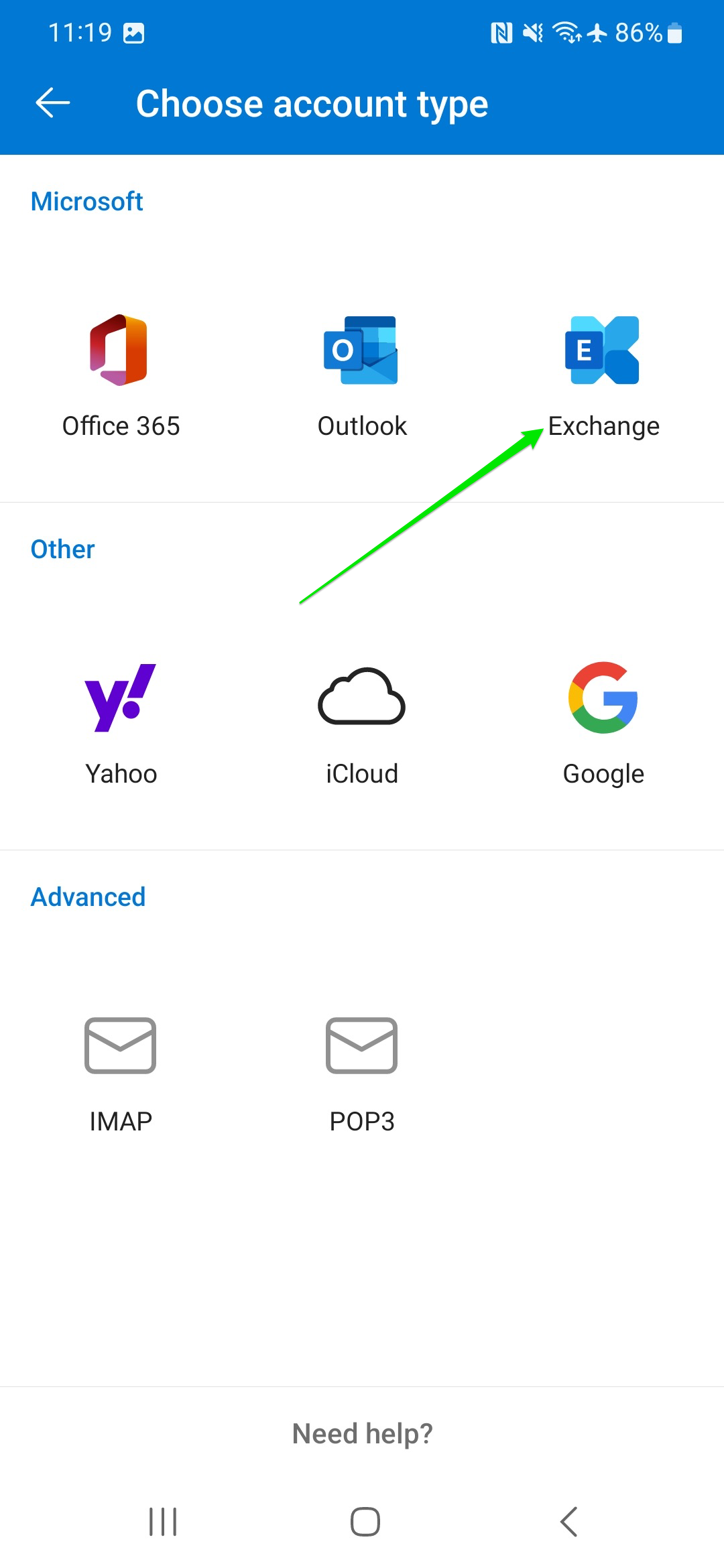
- Select “Exchange“:
- Type your password
Server: mobile.mail.us-east-1.awsapps.com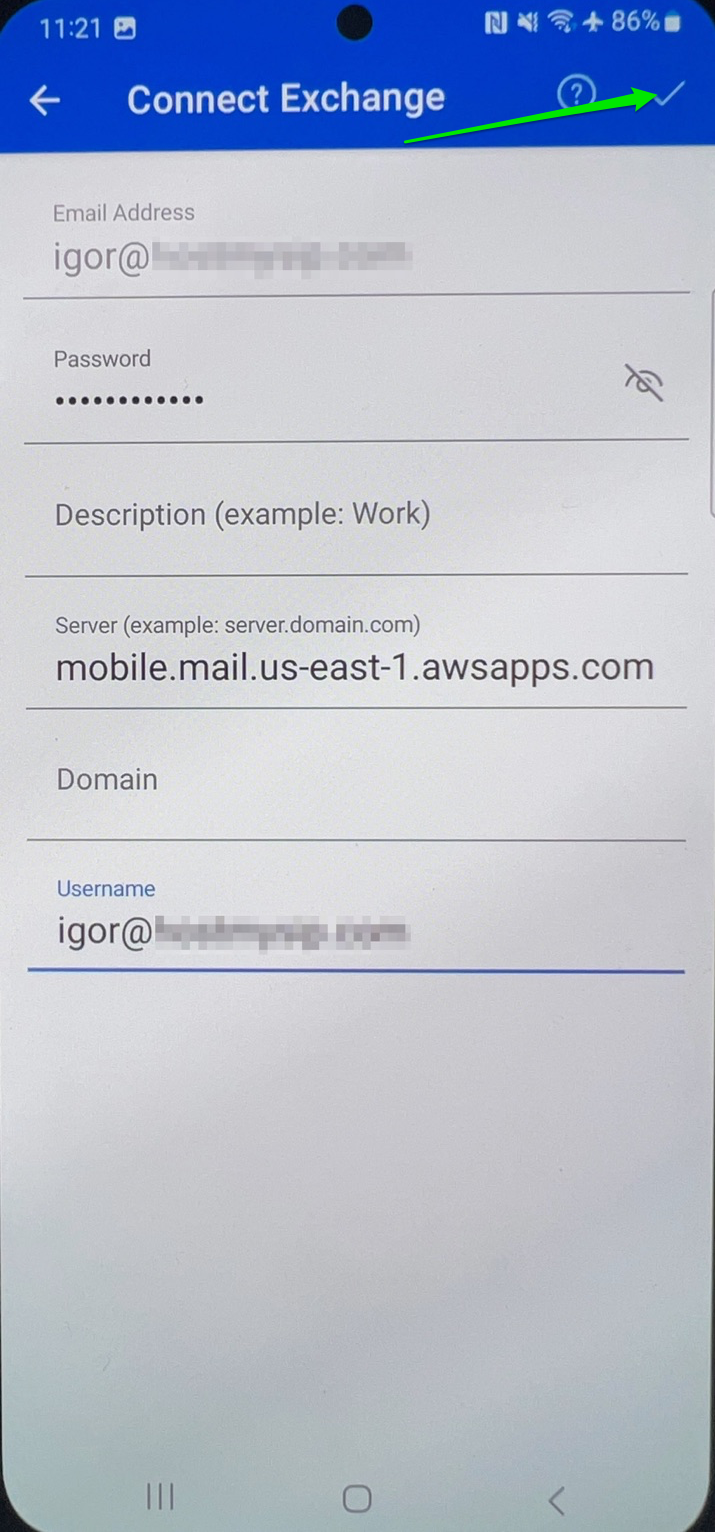
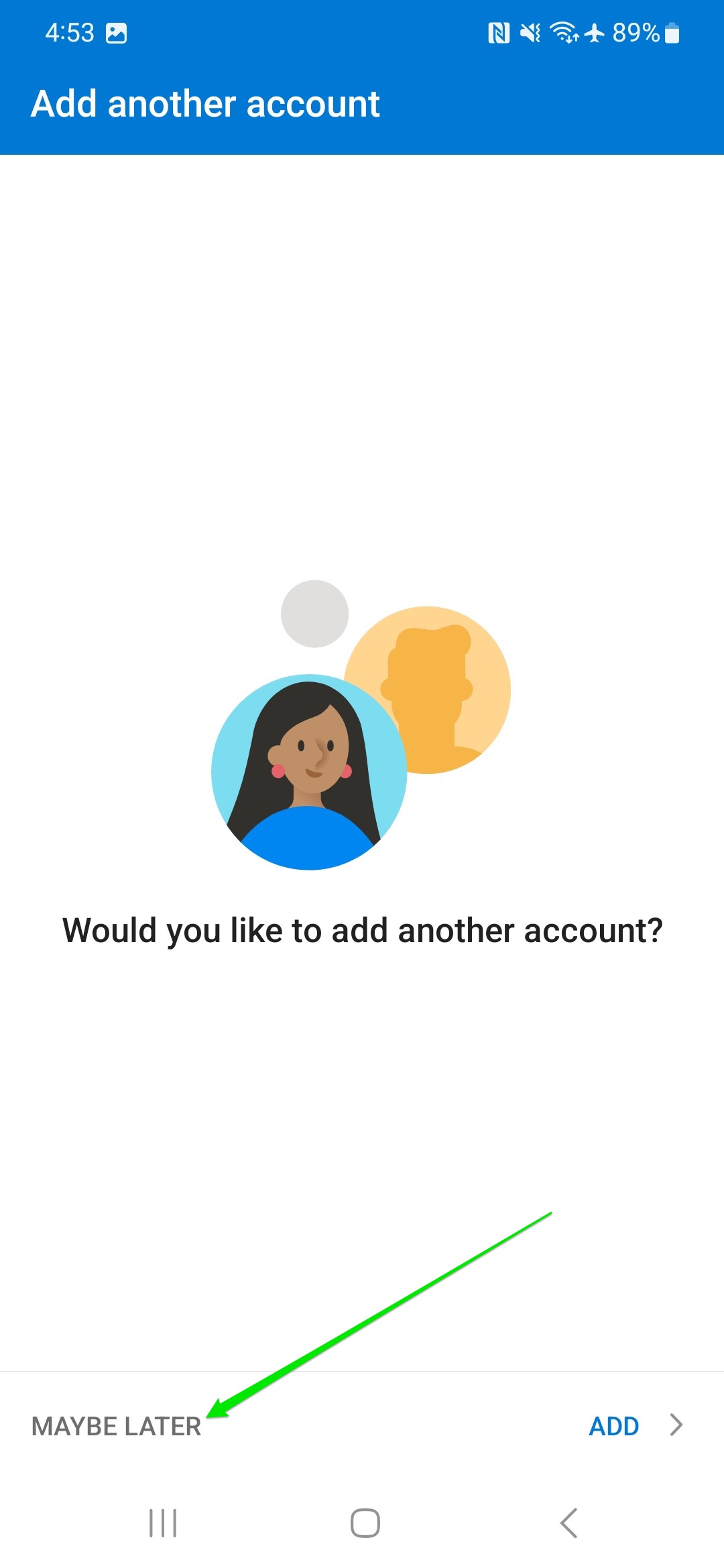
- Click “MAYBE LATER“:
- You are in your Inbox:

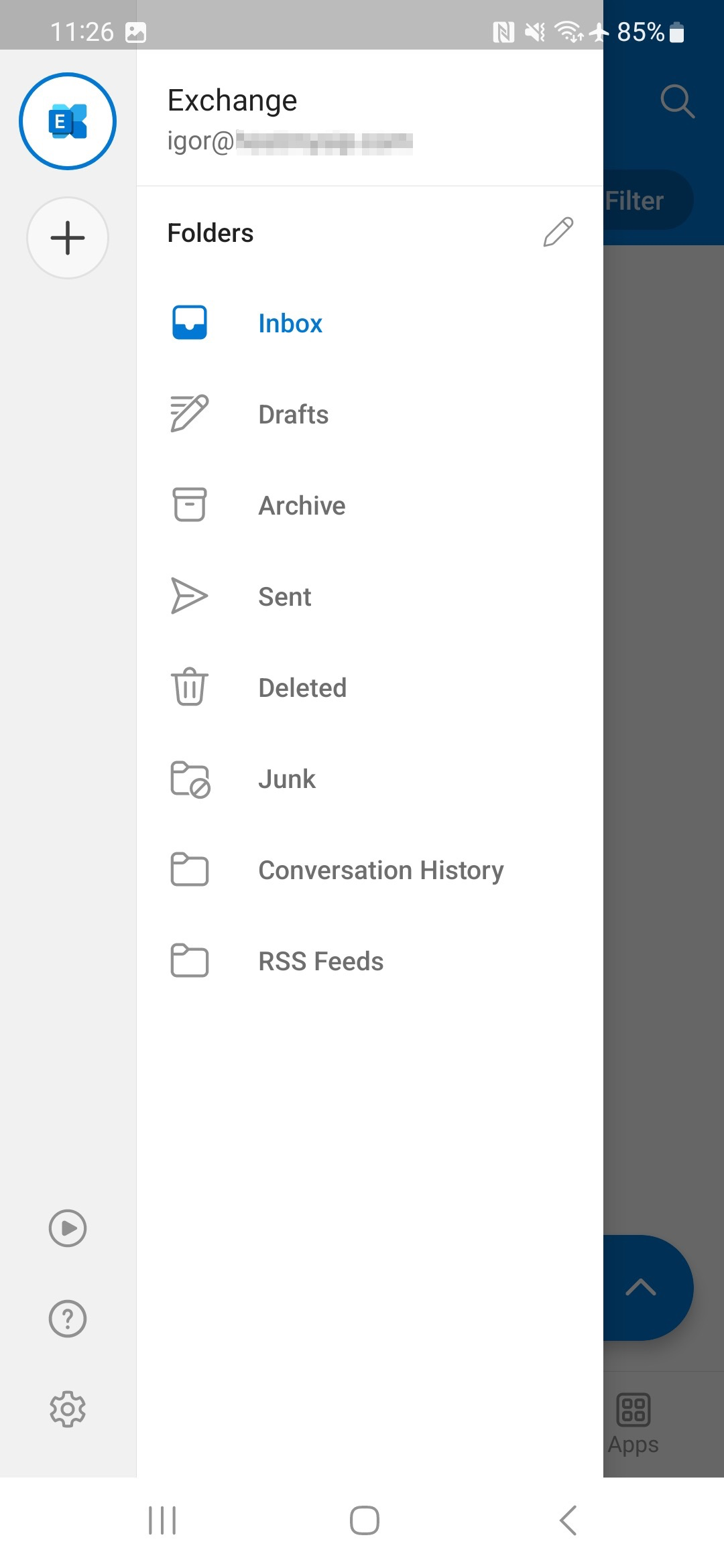
- List of all folders:
Android Outlook IMAP connectivity:
- Open “Play Store”, search for Outlook and install it.
- Start Outlook app:
- Click “ADD ACCOUNT“:
- Enter your email and click “CONTINUE“:

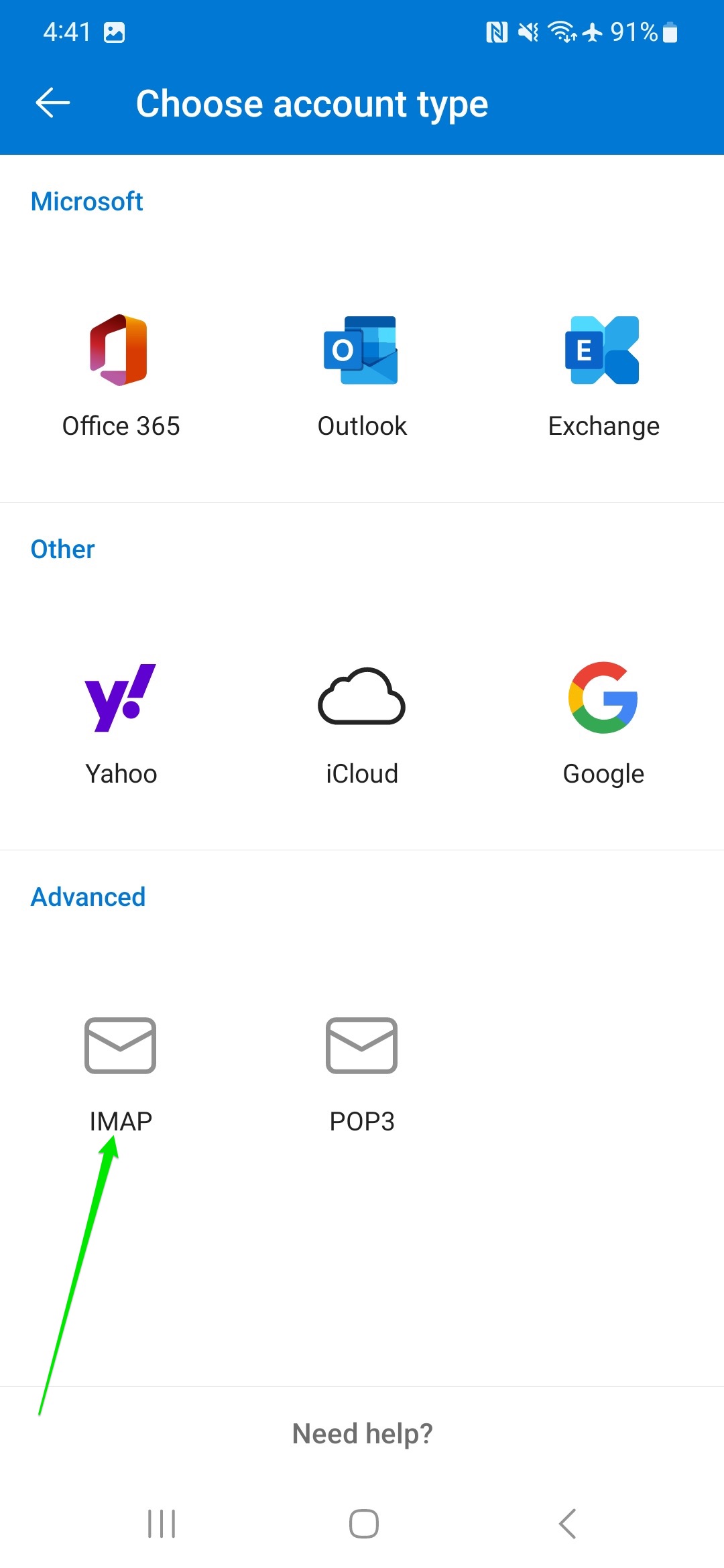
- Click “IMAP”:
- IMAP Incoming Mail Server
IMAP Hostname: imap.mail.us-east-1.awsapps.com
IMAP Port: 993
Port Security: SSL
Enter your login and password
SMTP Outgoing Mail Server
SMTP Hostname: smtp.mail.us-east-1.awsapps.com
SMTP Port: 465
Port Security: SSL
Enter your login, password and click sign in checkbox: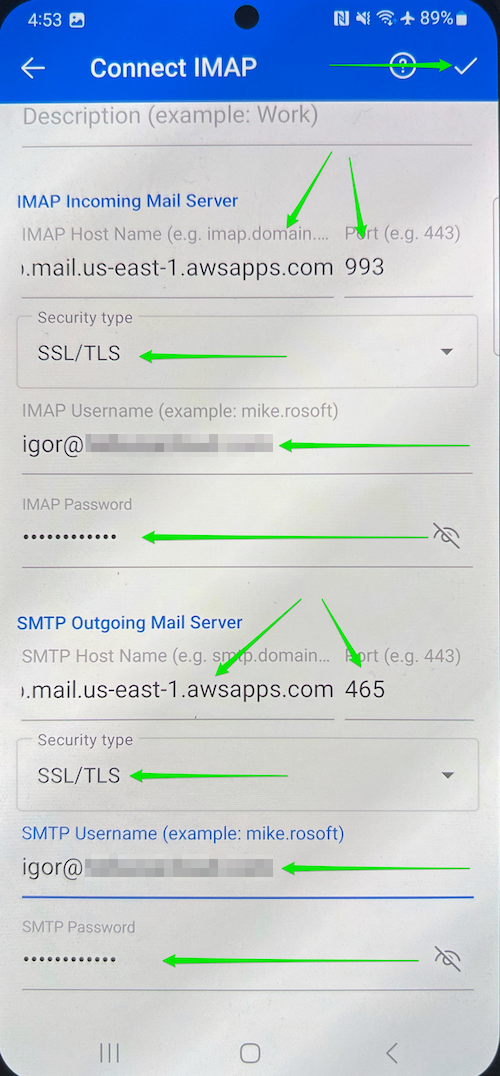
- Click “MAYBE LATER“:
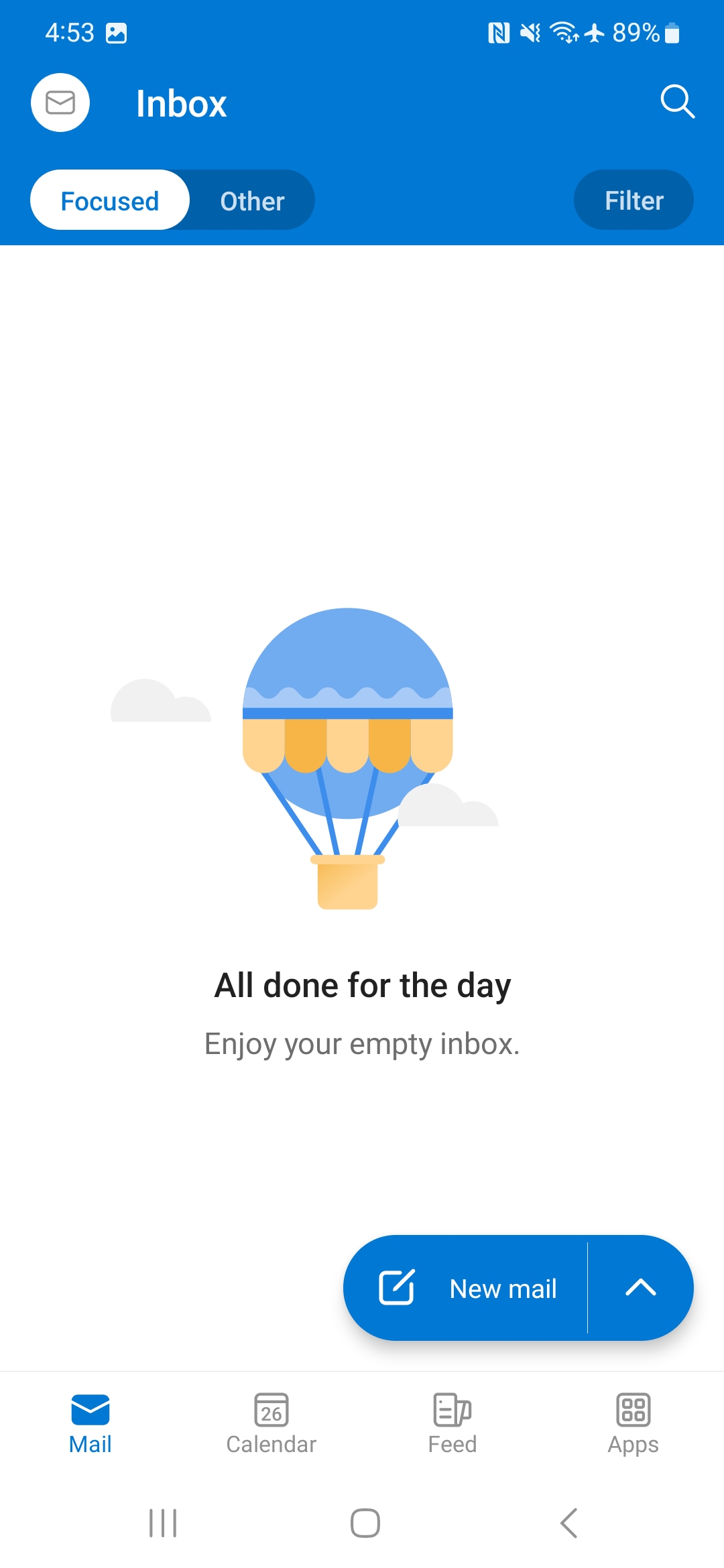
- You are in your Inbox:
- List of all folders: