Windows 10/11 Outlook Exchange connectivity:
- Start Outlook, type your email (you@hebusa.com or you@hostmysip.com) and click “Connect:

- Select “Exchange“:
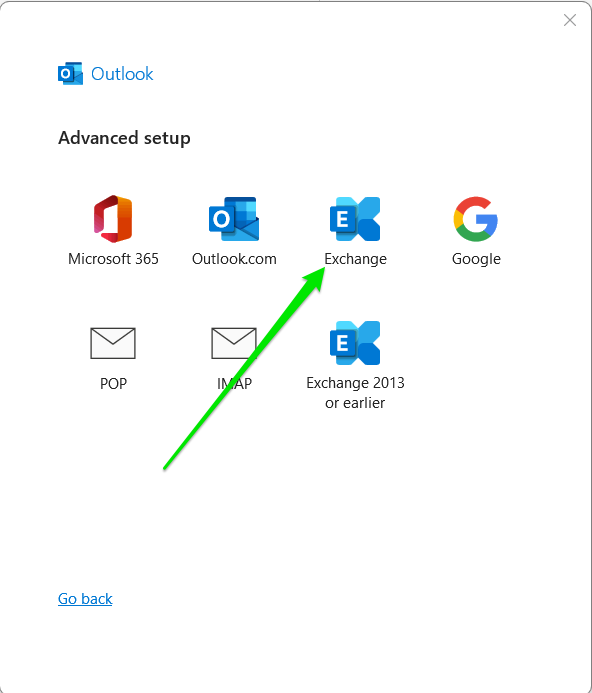
- Outlook will start configuring the connectivity:
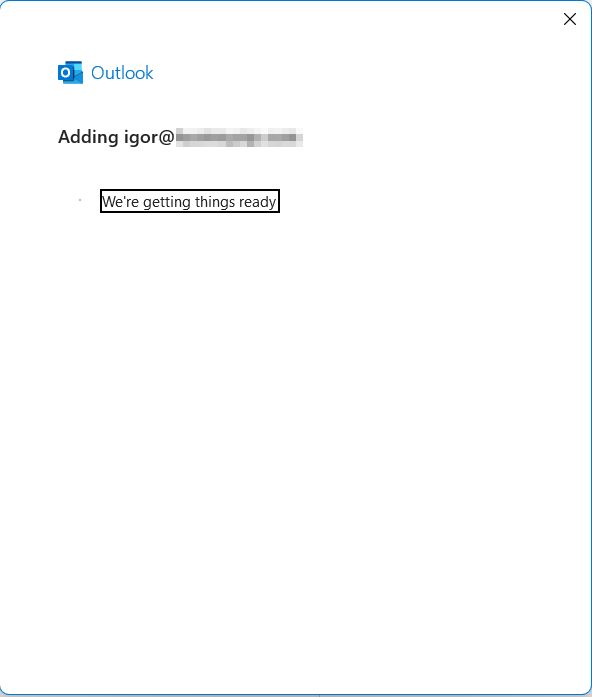
- A window will popup, type your password and click “OK“:

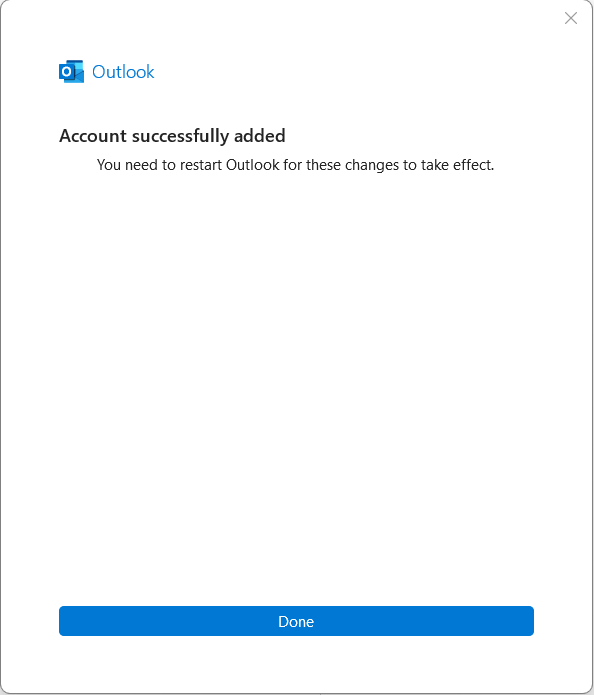
- You should get a message that account was successfully added:
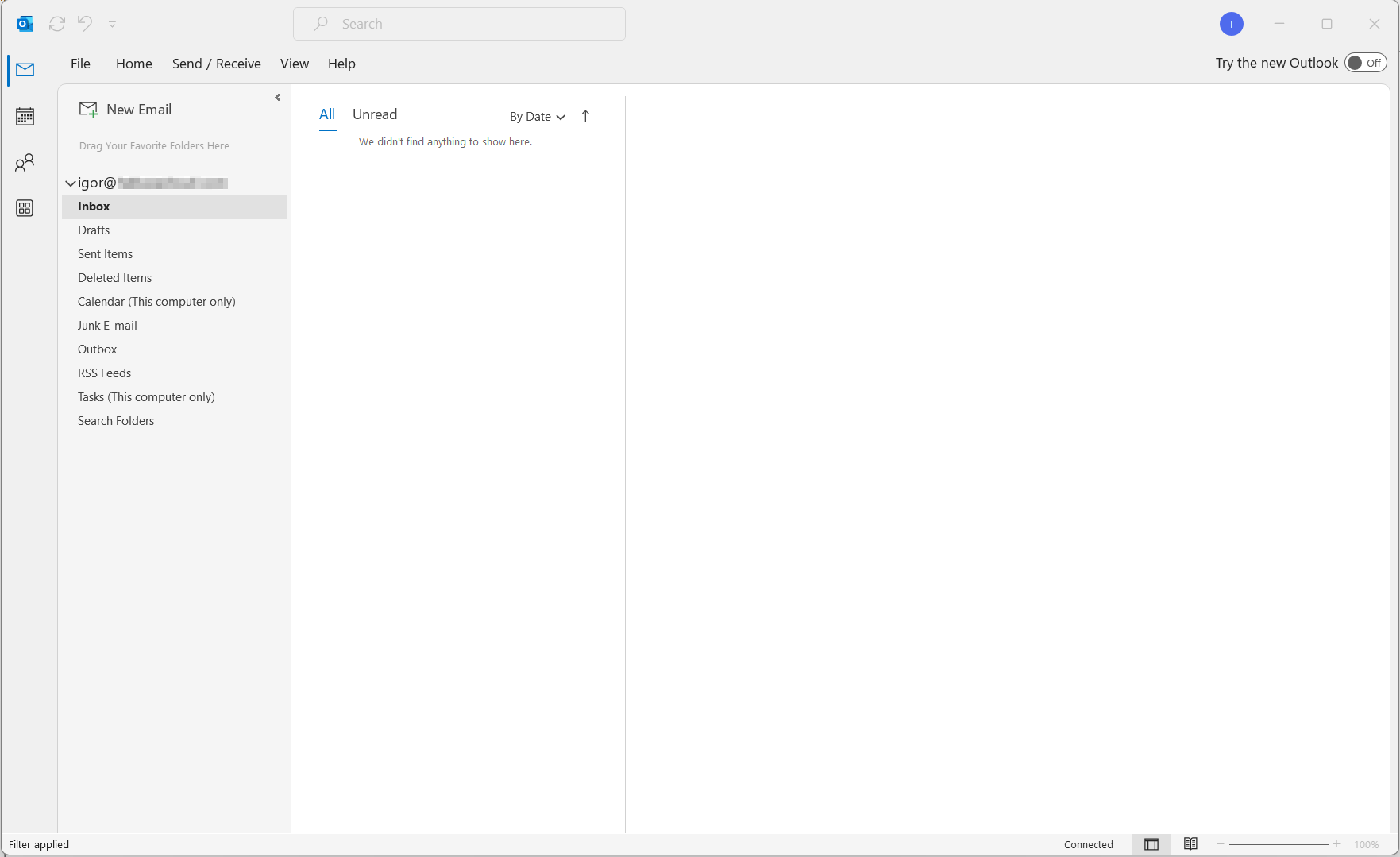
- You’ll see your Inbox:
Windows 10/11 Outlook IMAP connectivity:
- Start Outlook, type your email (you@hebusa.com or you@hostmysip.com) and click “Connect“:
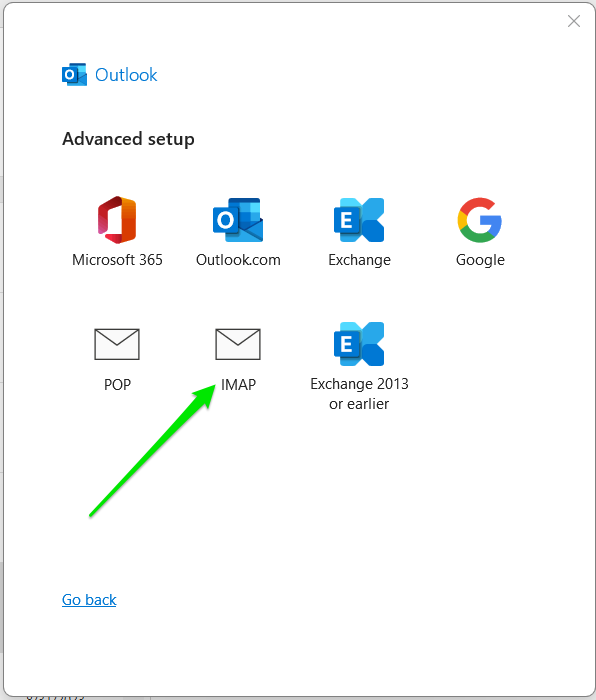
- Select “IMAP“:
- IMAP Incoming Mail Server
IMAP Hostname: imap.mail.us-east-1.awsapps.com
IMAP Port: 993
Port Security: SSL
Enter your login and password
SMTP Outgoing Mail Server
SMTP Hostname: smtp.mail.us-east-1.awsapps.com
SMTP Port: 465
Port Security: SSL
Enter your login, password and click “Next”:
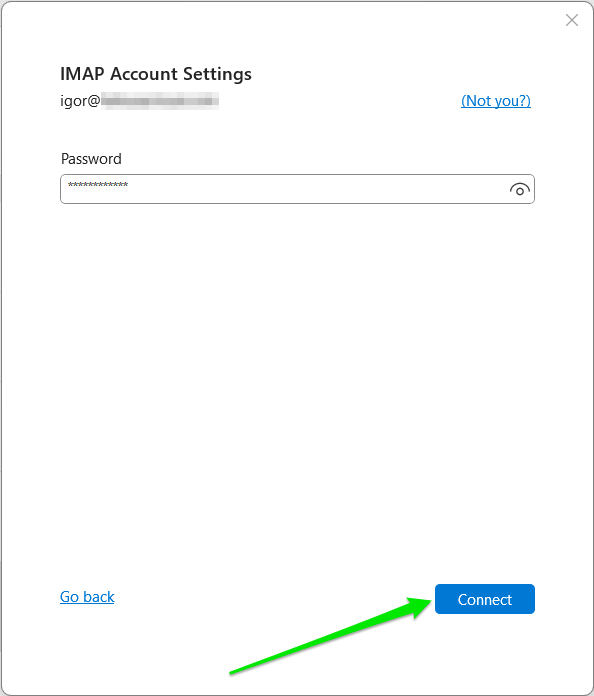
- Type your password and click “Connect“:
- You’ll see your Inbox: